Record
Start Recording
Section titled “Start Recording”-
In
Storage, select the storage content for different memory storage options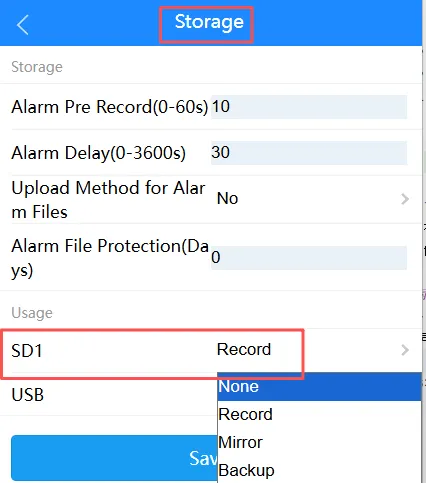
-
In
General, select a recording mode; we recommend enabling “Start Recording on Boot”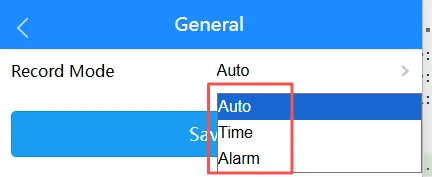
-
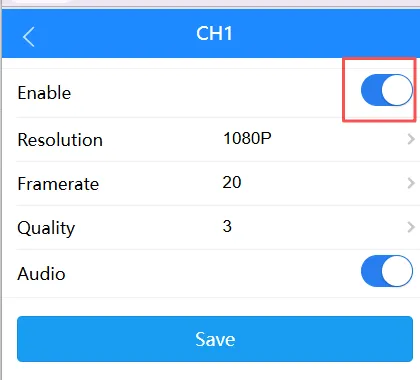
In Main Stream, toggle the camera channel’s enable switch to “On”
-
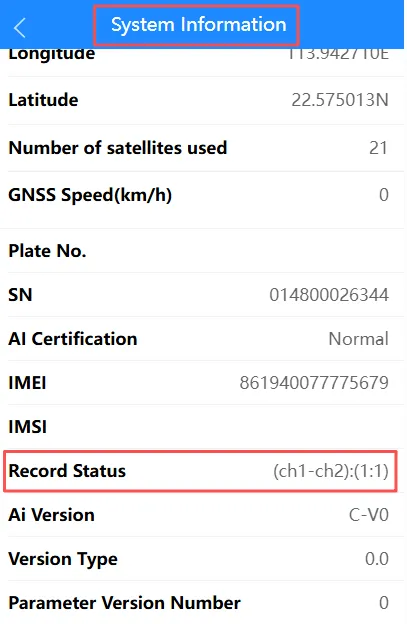
After completing the above steps, you can view the device’s recording-related functions. If any issues arise, you can verify the recording status using the following points:
- The red dot displayed on the screen confirms the recording status
- The status indicated by the recording indicator light on the device
- Verify the recording status via the management console
-
If the issue persists and there is no recording, proceed to troubleshoot the specific recording-related issue.
Live StreamingView real-time footage from the device to monitor the scene.Alarm VideoView video clips recorded when the device triggers an alarm.
Post-Engine-Off Recording
Section titled “Post-Engine-Off Recording”-
In Power Manage, set
power modeto ACC, and configure the relevantdelay off,record delay, andrecord channel.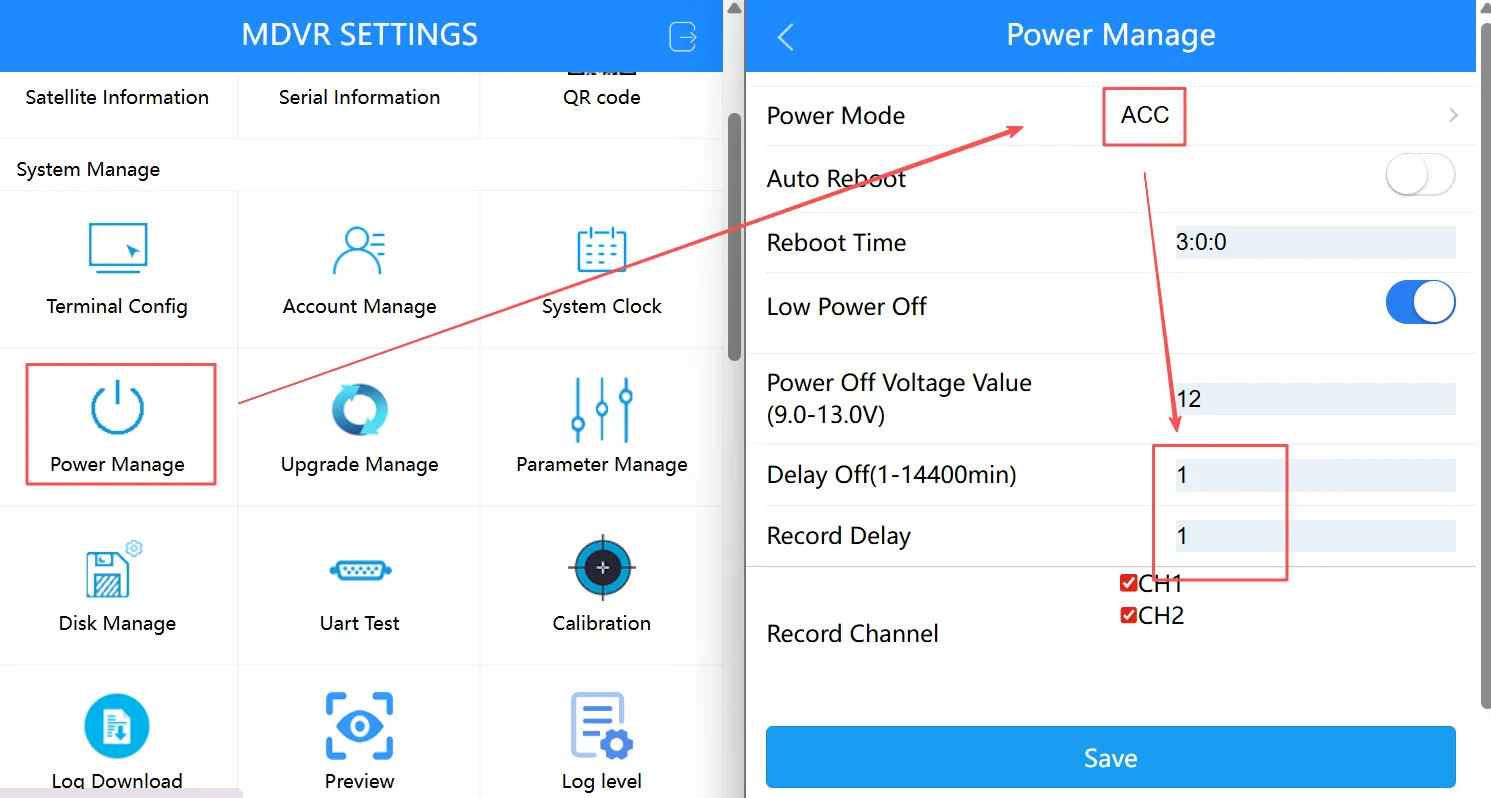
-
After disconnecting the ACC, the device will record normally according to the set post-shutdown recording delay time. Once the delay period has elapsed, the device will stop recording.
Set the post-shutdown recording delay to 5 minutes; when the ACC is turned off at 9:00:00, the post-shutdown recording function takes effect; Between 9:00:00 and 9:05:00, remote live preview is active; during this period, you can view the live feed. After 9:05:00, remote preview is no longer active, and you will not be able to view the video feed