Tools
Disk Utility TFtool
Section titled “Disk Utility TFtool”-
Insert the
TF card/SD cardinto your computer and open the TFtool disk utility.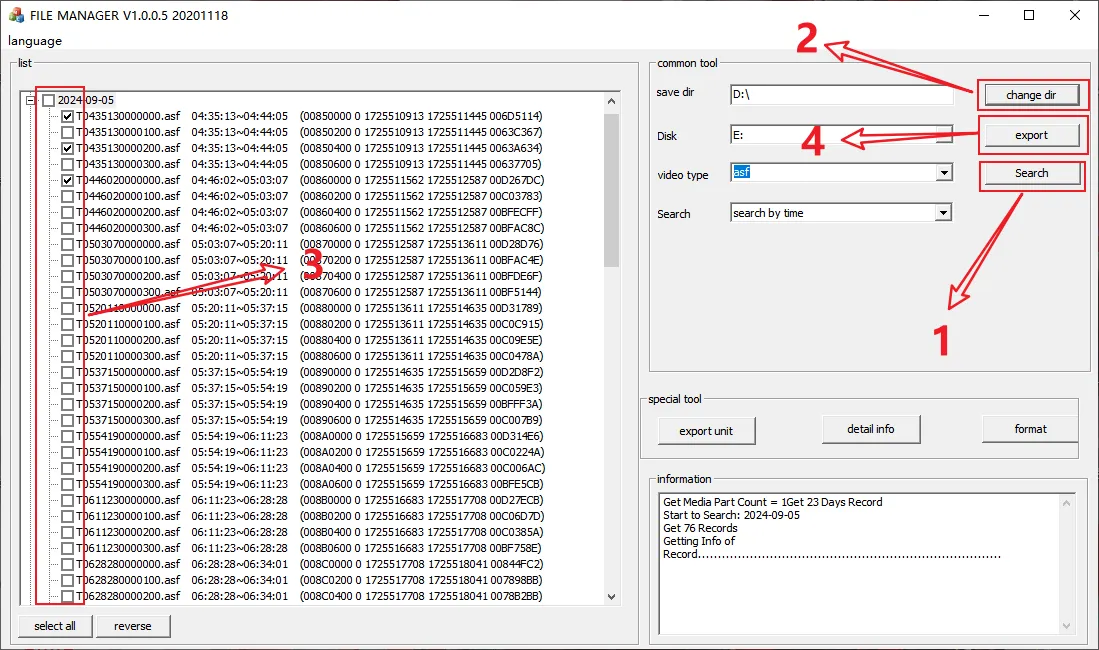
-
Instructions
- Supported video formats for export:
- asf
- avi
- Search methods:
- search by time
- search in order
- err rec search
- time search
- Supported video formats for export:
Flashing
Section titled “Flashing”Type 1
Section titled “Type 1”-
Compatible Models:
MC202/MC202P/MC401/MC401P/MC402/MC403 -
Tool used:
CardKit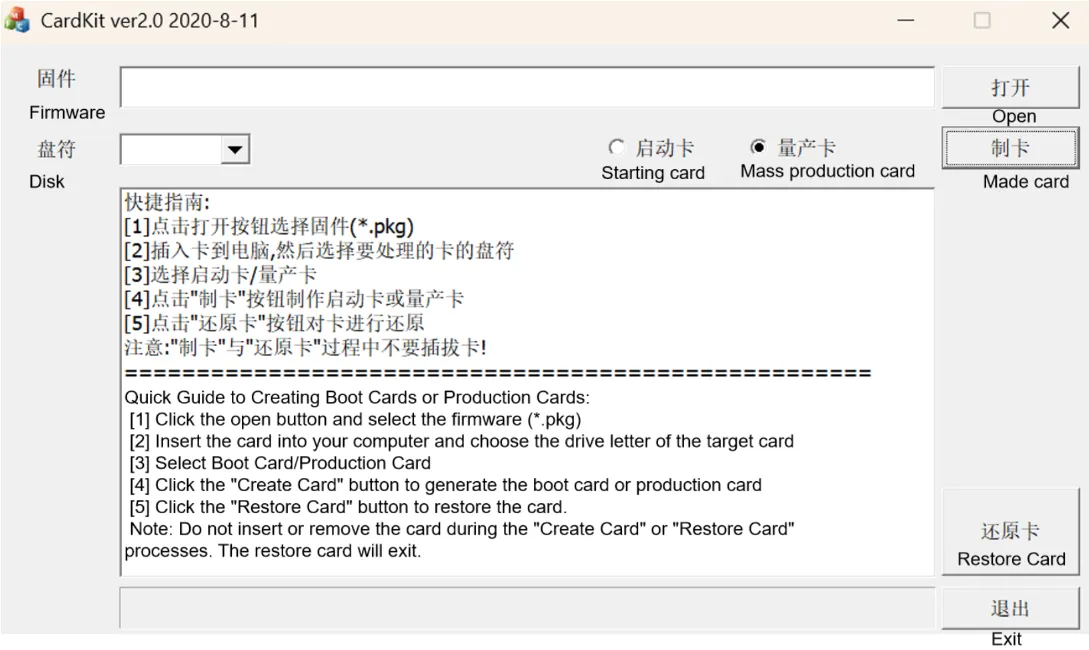
-
Procedure:
1. Open the tool
CardKit ver2.0 2020-8-11and select the program to be flashed:M08V2-BURN-A230206412.18989.pkg2. Select the
removable diskto be flashed3. Select
Create Card. A prompt to automatically format the removable disk will appear; click Confirm to proceed with automatic formatting4. Once the card creation reaches 100% completion, exit and remove the card
5. Insert the TF card into the device and power it on. The flashing
green lightduring the burning process indicates successful completion (LED indicators for completion may vary by device model)6. After removing the TF card, use the
CardKit ver2.0 2020-8-11tool to click “Restore Card,” then reinsert the TF card into the device to use it normally
Type 2
Section titled “Type 2”-
Compatible Models:
MC904/MC908 -
Procedure:
-
Format the disk: On your computer, right-click the selected disk, choose “Format,” and select FAT32 as the file system (Note: For the first burn on an empty card, you must use a tool to format the disk into a single partition)
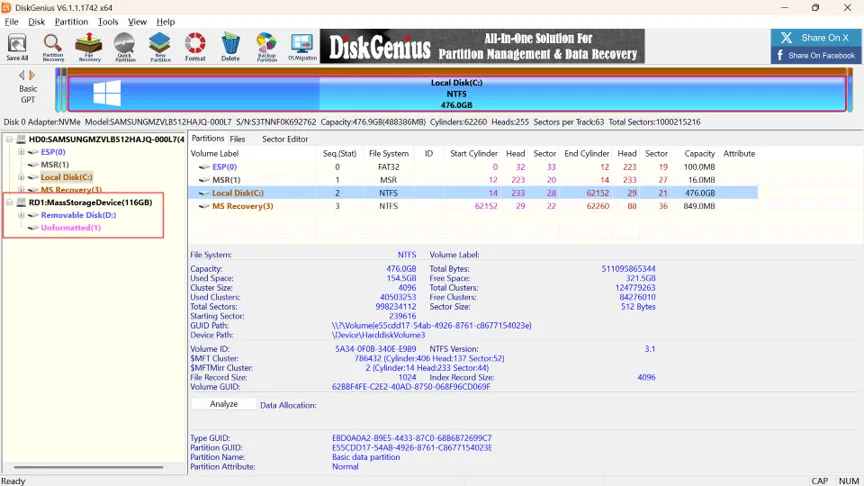
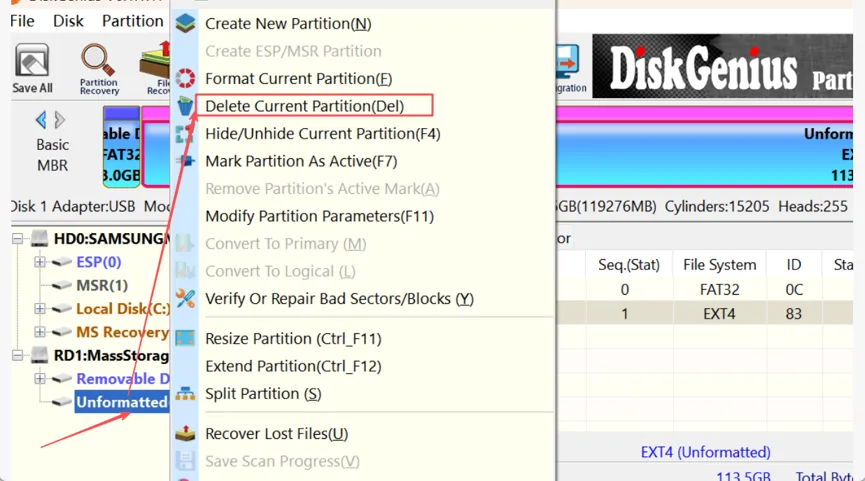
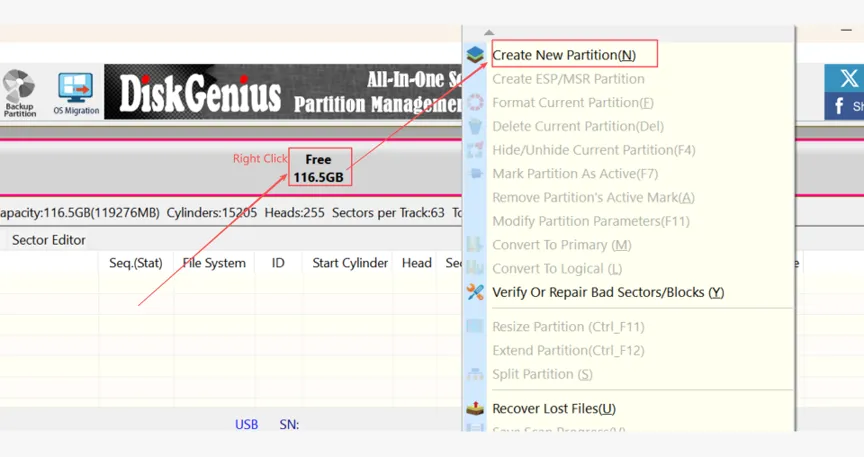
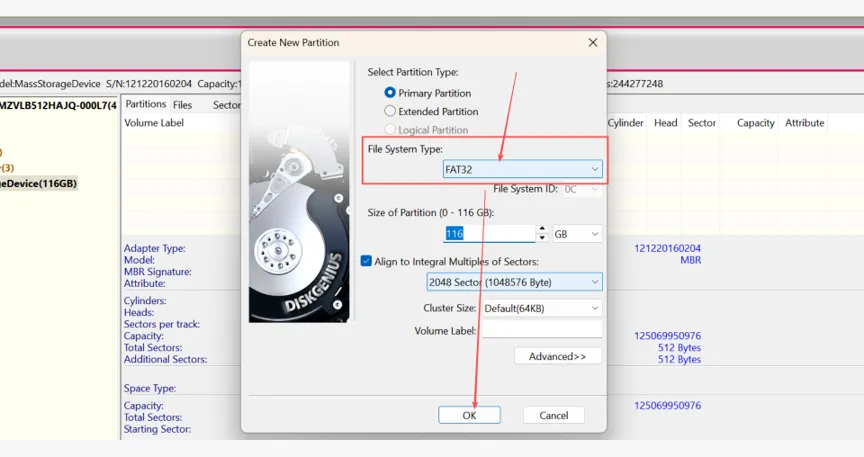
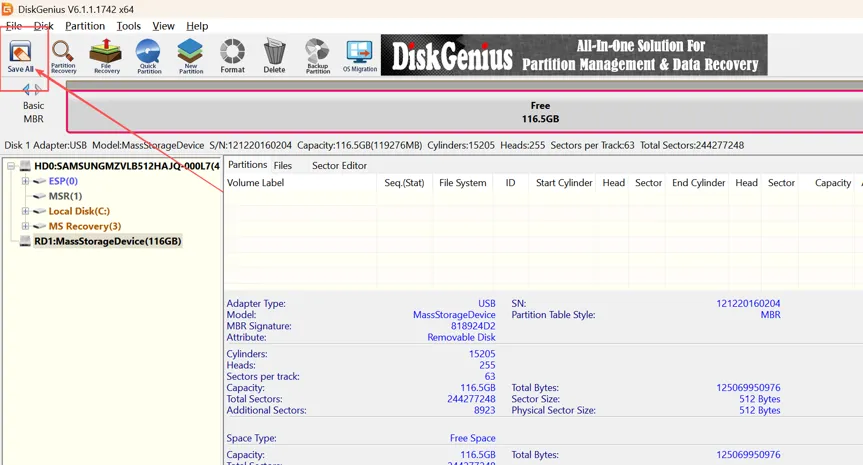
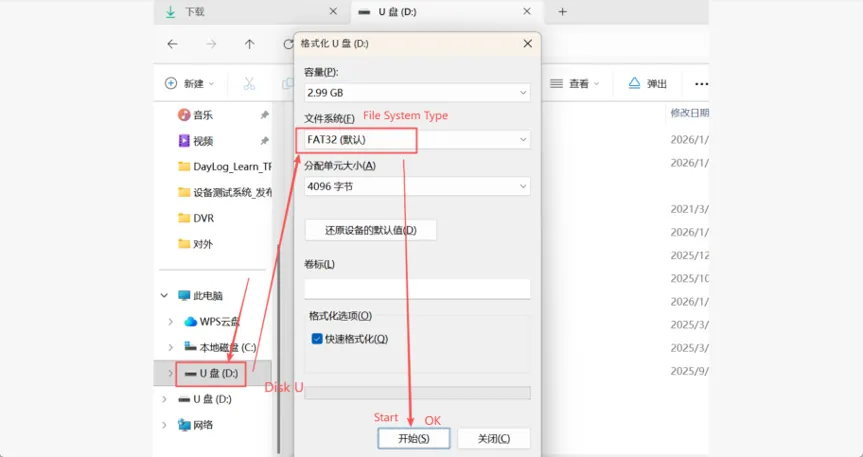
-
Rename the file with the red filename to
FW98336A.bin
-
Place the
LD and FWflashing files on the disk (Note: For the first flash on an empty disk, the LD file must be placed first, and the disk must be formatted as a single partition)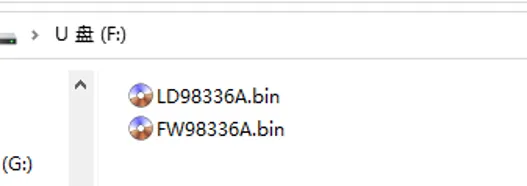
-
Insert the SD card into the device, unplug the power, and restart. Wait for about 2 minutes; the device will automatically reboot once the burn is successful
-
Remove the SD card, delete the files on it, and place the microcontroller program on the SD card to perform the update
-