Driver Information
Process Guide
Section titled “Process Guide”flowchart TB
A["1. Use the Driver Info software to generate multiple or single driver profiles"]
B["2. Rename to device model-DRIVER-V-date"]
C["3. Import driver information into the device; set the interval for scheduled checks (success/failure)"]
D["4. Connect to the DMS camera and select the corresponding channel in the channel settings"]
E["5. Alarm settings: Enable identity recognition; set sensitivity (similarity)"]
F["6. Trigger facial recognition via ACC (device reboot), scheduled patrols, or inserting/removing the IC card"]
A --> B --> C --> D --> E --> F
Importing Driver Facial Information into the Platform
Section titled “Importing Driver Facial Information into the Platform”-
After logging into the platform, switch to the
Fleet Managementsection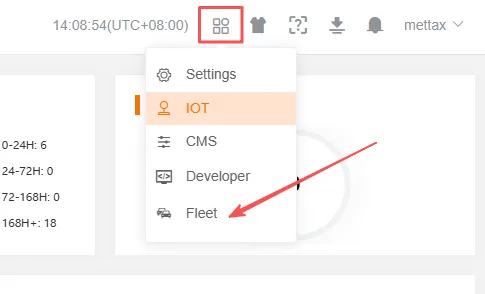
-
Click
Driversto access the page, where you can search for, add, or delete driver information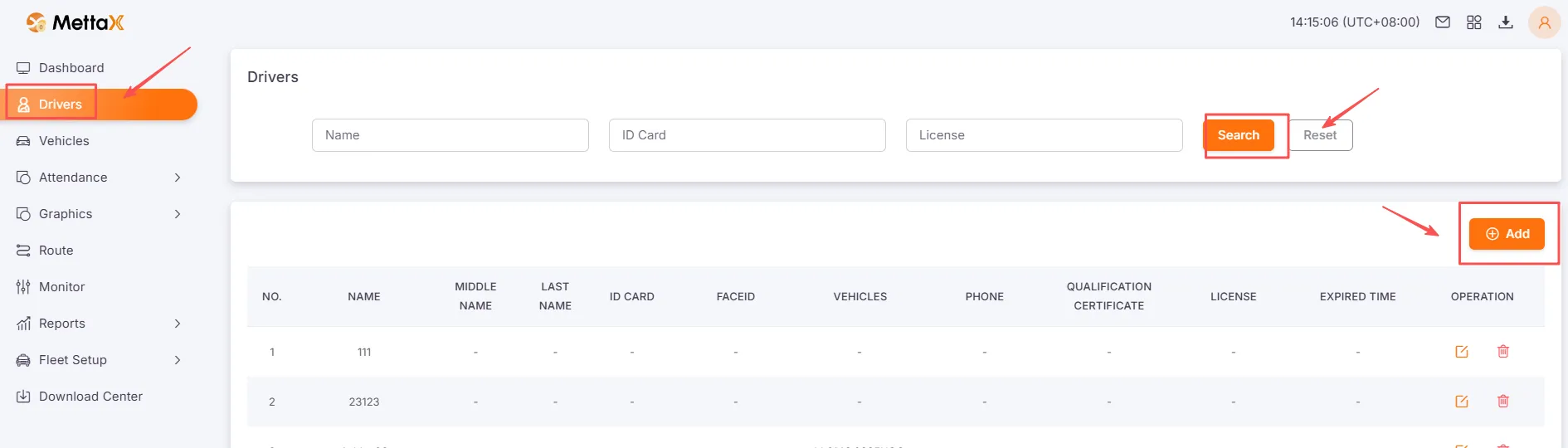
-
Follow the on-screen prompts to fill in the required information for the new driver. If you need to download driver information, click
Download Driver Informationto access the corresponding tool, fill in the details, and download a compressed file containing the driver information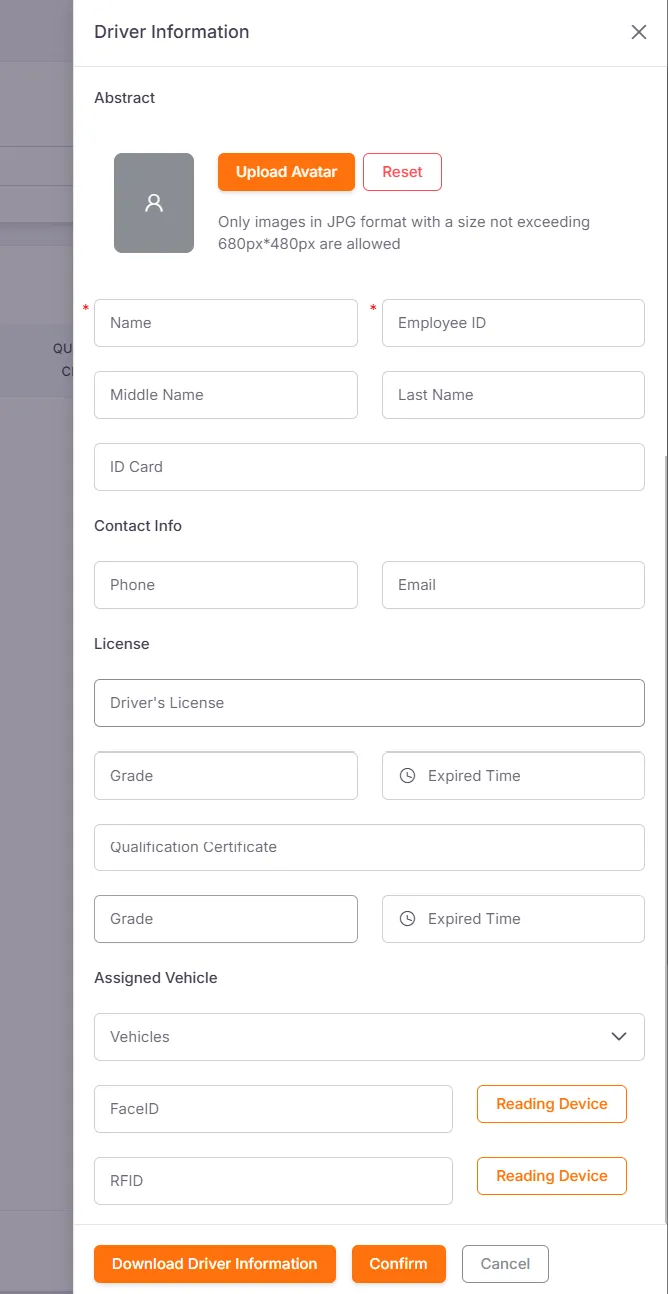
-
After successful addition, you can find and view the new driver information on the
Driverspage -
Other Import Methods
Import Driver Information from Device StorageNavigate to instructions for importing driver information from device storage.Import Driver Information RemotelyClick to view instructions for remotely importing driver information.